Creating a professional-looking video usually means dealing with scripts, cameras, editing software, transitions, voiceovers and a lot of time. But AI video tools are changing that workflow quickly. One of the latest developments is Google Vids Gemini Omni 1.1, which brings Google’s newer Gemini video-generation technology directly into Google Vids.
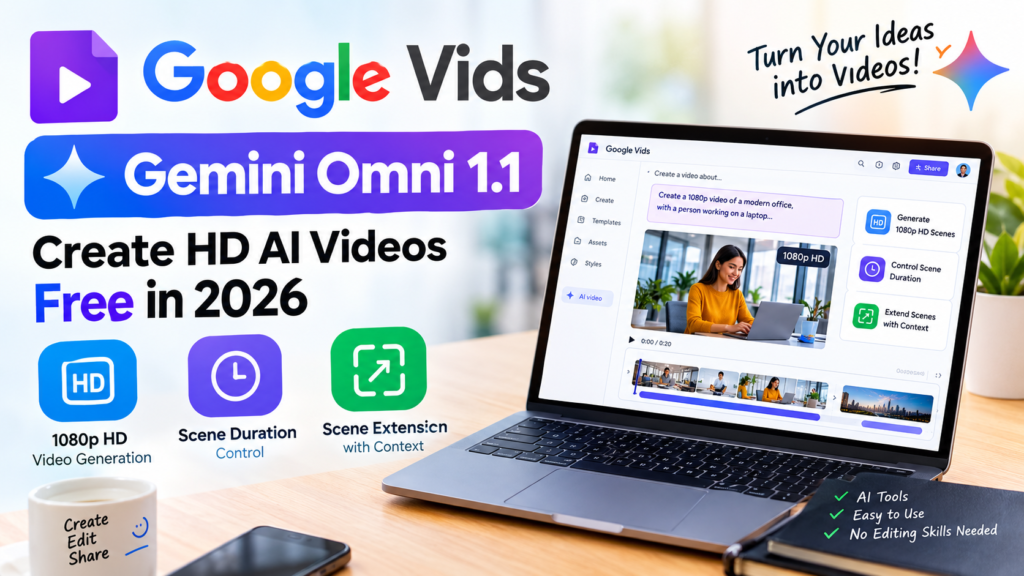
On September 23, 2026, Google announced that Gemini Omni 1.1 Flash had been integrated into Google Vids with new creative controls. According to Google, users can now create AI-generated video scenes in 1080p HD, control the duration of scenes and extend scenes while maintaining visual context. Google also says the feature is available at no cost for eligible users, although account type and usage limits can affect access.
This makes Google Vids interesting for creators, small businesses, marketers, students and people who simply want to turn an idea into a video without learning complicated editing software.
Google Vids is Google’s AI-powered video creation tool that helps users create videos from prompts, documents and other content. You can learn more on the Google Vids official page.
But what exactly is Google Vids Gemini Omni 1.1? How does it work? Is it really free? What are its limitations? And can beginners actually use it to create useful videos?
Let’s break it down.
Table of Contents
What Is Google Vids Gemini Omni 1.1?
Google Vids Gemini Omni 1.1 is Google’s AI-powered video creation workflow inside Google Vids.
Google Vids itself is a browser-based video creation application designed for creating, editing, collaborating on and sharing videos. Gemini adds AI capabilities to that workflow, allowing users to generate video content and work with existing footage using natural-language instructions.
The important part of the September 2026 update is the integration of Gemini Omni 1.1 Flash.
Instead of treating AI video generation as simply entering a prompt and receiving a short clip, Google is giving users more control over how generated scenes fit into an actual video project.
For example, a creator may want a scene to last a particular amount of time because the voiceover is already recorded. With the new controls, the duration can be specified more precisely.
Google also says users can extend scenes while maintaining the visual context, including elements such as lighting, characters and environments.
That is important because consistency has traditionally been one of the difficult parts of AI-generated video.
What’s New in Google Vids With Gemini Omni 1.1?
The September update introduces several features that make the video workflow more flexible.
1. 1080p HD Video Generation
One of the biggest changes is the ability to generate new AI video scenes in 1080p HD.
Google says users can create brand-new AI video scenes in full 1080p or upscale existing AI clips to make them fit more naturally into a timeline.
For creators, this matters because video quality becomes especially noticeable when content is published on websites, social platforms or presentations.
However, resolution is only one part of video quality. A 1080p clip can still have problems with motion, characters, objects or generated details. So users should review every AI-generated scene before publishing it.
2. Control the Scene Duration
Another useful feature is the ability to set specific durations.
Imagine that you have a 20-second voiceover explaining a product. A random-length AI clip may not fit the narration properly.
With the new controls, Google says creators can specify the duration of a generated scene so that it better matches their story and voiceover.
This is particularly useful for:
- YouTube videos
- Product demonstrations
- Social media content
- Business presentations
- Educational videos
- Explainer videos
- Marketing campaigns
Instead of constantly trimming clips manually, creators can start with a more appropriate duration.
3. Extend Existing AI Video Scenes
Scene extension is another major part of Gemini Omni 1.1.
Google says the model can extend a scene while preserving visual context such as the environment, characters and lighting.
This can be useful when an AI-generated scene ends too quickly.
For example, suppose you generate a scene showing a person walking through a futuristic city. If the original clip is too short for your narration, scene extension can continue the sequence instead of forcing you to create a completely unrelated second clip.
Google’s developer documentation also describes Omni 1.1 Flash’s ability to use previous video context for scene extension and says developers can extend clips in 10-second increments up to a cumulative 40 seconds through the API workflow.
The exact limits can differ depending on the product and account, so users should check the current Google Vids limits rather than assuming every Gemini Omni feature has identical limits.
4. Generate Video From a Simple Idea
One of the biggest advantages of Google Vids is that beginners don’t necessarily need traditional video-editing knowledge.
Google describes Vids as an AI-powered application for creating, writing, producing, editing, collaborating on and sharing videos.
That means the workflow can start with an idea rather than an empty editing timeline.
For example, a business owner could describe a product announcement and use Vids to build a video around that idea.
A creator could start with something like:
“Create a short product introduction showing a modern workspace, a person using the product and a clean ending suitable for social media.”
The AI can then help turn the concept into visual scenes.
The important point is that prompts should be specific. A vague prompt often produces a generic result.
How to Use Google Vids Gemini Omni 1.1
Getting started is relatively straightforward.
Step 1: Open Google Vids.
Go to Google Vids through your eligible Google account.
Google provides access through the Vids web experience, and its official documentation says feature availability depends on the account type and subscription.
Step 2: Start an AI Video
Look for the AI video creation option in the Vids interface.
Google’s September announcement specifically says users can select “Create AI videos” to start generating scenes with Omni 1.1.
Step 3: Describe Your Video
Write a clear prompt describing:
- Subject
- Location
- Camera movement
- Visual style
- Lighting
- Action
- Approximate duration
- Aspect ratio if relevant
- Intended audience
For example:
Prompt idea:
Create a clean technology product video showing a small business owner working in a modern office. Begin with a wide shot, slowly move toward the laptop, show the product dashboard, then transition to a confident close-up. Use realistic office lighting and a professional business style.
The more clearly you describe the scene, the easier it is to review whether the output matches your intended story.
How to Get Better Results From Gemini Omni 1.1
AI video generation doesn’t eliminate creative planning.
In fact, better planning can make the biggest difference.
Keep One Scene Focused
Don’t ask for one short clip to show ten different things.
Instead of:
Show a company, its employees, its factory, customers, products, offices and global operations.
Break it into separate scenes.
For example:
Scene 1: Exterior of the company building.
Scene 2: Employees working in the office.
Scene 3: Factory production.
Scene 4: Product close-up.
Scene 5: Customer using the product.
This gives you more control over the final video.
Match the Video to Your Voiceover
If you’re creating an educational or YouTube video, write the narration first.
Then decide which visuals should appear while each sentence is being spoken.
This prevents a common AI-video problem: beautiful visuals that have little connection with the narration.
Use Scene Extension Carefully
Scene extension can help continue a sequence, but it should not be used automatically for every clip.
Check whether:
- The character remains consistent
- The environment remains logical
- Objects stay in the correct position
- Motion remains natural
- The lighting matches
If something changes unexpectedly, generating a new scene may produce a better result.
Is Google Vids Gemini Omni 1.1 Really Free?
This is where users need to be careful.
Google’s September 23 announcement says anyone with a Google or Google Workspace account can create high-quality videos with Gemini Omni in Google Vids at no cost.
However, “free” does not necessarily mean unlimited.
Google’s current Vids availability documentation shows that AI video limits vary significantly depending on account type. Personal Google accounts, Workspace accounts and Google AI plans have different allowances.
For example, Google’s current documentation lists personal Google accounts with a limited number of AI video clips combined with AI avatar usage, while some Google AI and Workspace plans provide substantially higher limits.
So before planning a large production around Google Vids, check the limits associated with your own account.
This is especially important for creators producing videos every day.
What About Google Vids AI Avatars?
Google Vids also supports AI avatars.
Users with an eligible account can create a personal avatar by recording their face and voice and then use that avatar in AI-generated videos. Google says personal avatar creation requires an eligible Google Workspace subscription, and the user must be at least 18 years old.
This could be useful for:
- Training videos
- Internal company announcements
- Product introductions
- Educational content
- Customer welcome videos
- Business presentations
However, personal avatar availability can vary by region, account and language.
Google’s current documentation says personal avatars are currently supported in English and aren’t available in the EEA, Switzerland or the UK.
Therefore, users should verify availability directly inside their account.
Does Google Vids Add a Watermark?
AI-generated content transparency is another important part of Google’s system.
Google says every video generated with Gemini Omni includes an imperceptible SynthID digital watermark intended to identify AI-generated content.
Google also documents content credentials for AI-generated media in supported Workspace applications. These credentials can provide information about the origin and history of AI-generated or AI-modified media.
This is useful because AI-generated media is becoming increasingly difficult to distinguish from traditionally produced content.
For publishers and businesses, understanding how AI-generated media is labelled can also be important for transparency.
Google Vids vs Traditional Video Editing
Traditional video editors still provide a high level of manual control.
You can manually control:
- Every frame
- Audio tracks
- Transitions
- Effects
- Colour
- Timing
- Keyframes
- Layers
- Captions
AI tools take a different approach.
Instead of manually performing every operation, you describe what you want and let the AI handle part of the production process.
That makes Google Vids particularly interesting for people who don’t want to spend hours learning complex editing software.
But AI does not replace human review.
A generated video can still contain mistakes, inconsistent objects or visuals that don’t communicate the intended message.
The most practical approach is therefore AI-assisted production, not simply generating a video and publishing it without checking.
Who Should Use Google Vids Gemini Omni 1.1?
Content Creators
YouTubers and social media creators can use AI-generated scenes to create supporting visuals, explainers and promotional content.
Small Businesses
A small business without a dedicated video team can use Vids to create product announcements, promotional clips and internal communication videos.
Students and Teachers
Educational presentations can benefit from generated visual scenes, especially when explaining concepts that are difficult to demonstrate using static slides.
Marketing Teams
Marketing teams can create prototypes and test ideas before investing in a larger production.
Beginners
Perhaps the biggest audience is beginners.
Someone who has never used professional video-editing software can experiment with AI-generated scenes without first learning a complicated timeline-based workflow.
What Are the Limitations?
Google Vids Gemini Omni 1.1 is powerful, but it isn’t magic.
There are several limitations to keep in mind.
Usage Limits
Free access doesn’t mean unlimited generation. Current limits vary by account type.
AI Errors
Generated videos can still contain visual inconsistencies or unexpected results.
Creative Control
Although Omni 1.1 provides more control than earlier workflows, traditional editing software can still offer more precise manual control.
Availability
Some features depend on your Google account, subscription, region or administrator settings. Google says work and school administrators can control access to Google Vids and its generative AI features.
AI Content Transparency
AI-generated media can include digital identification technologies such as SynthID, so creators should understand the transparency features before using generated content commercially.
Can Google Vids Gemini Omni 1.1 Replace a Video Editor?
For some simple projects, it may reduce the amount of manual editing required.
But saying that AI completely replaces professional video editors would be an oversimplification.
A professional production involves much more than generating images or clips.
It involves:
- Storytelling
- Scriptwriting
- Pacing
- Sound design
- Music
- Editing
- Colour
- Brand consistency
- Fact checking
- Audience understanding
Google Vids can automate parts of this workflow, but human decisions remain important.
The biggest benefit is that it can lower the technical barrier to getting started.
Final Thoughts
Google Vids Gemini Omni 1.1 is an interesting step in the evolution of AI video creation.
The September 2026 update brings more control into the video workflow, including 1080p HD generation, specific scene-duration controls and scene extension.
For beginners, the most important advantage isn’t simply the ability to generate an AI video. It’s the combination of generation and editing inside a single workflow.
Someone can start with an idea, create scenes, adjust their duration, extend footage and build a complete project without immediately needing advanced video-editing skills.
At the same time, users should understand that availability and usage limits depend on their Google account. Google’s current documentation shows different allowances across personal, Workspace and Google AI accounts.
So if you’re looking for a simple way to experiment with AI video creation in 2026, Google Vids with Gemini Omni 1.1 is worth exploring.
The key is to treat it as a creative assistant rather than an automatic replacement for human editing. Give it a clear story, use focused prompts, review every generated scene and combine AI generation with your own editing decisions.
That approach can turn Google Vids from just another AI experiment into a practical video-production tool.
Frequently Asked Questions
Is Google Vids Gemini Omni 1.1 free?
Google announced Gemini Omni 1.1 video generation in Google Vids at no cost, but usage limits depend on the user’s account type and plan.
Can Google Vids create 1080p AI videos?
Yes. Google says Gemini Omni 1.1 in Vids can generate new AI video scenes in 1080p HD and upscale existing AI clips.
Can Gemini Omni 1.1 extend a video?
Yes. Scene extension is one of the main capabilities Google highlighted in the September 2026 Vids update.
Do I need professional video-editing skills?
No. Google Vids is designed to simplify video creation, and Gemini allows users to use natural-language instructions as part of the workflow.
Do Google Vids have usage limits?
Yes. Limits vary according to the account and plan. Google currently lists different AI-video allowances for personal, Workspace and Google AI accounts.
Can I create an AI avatar in Google Vids?
Eligible users can create personal avatars using their face and voice. Google currently requires an eligible Workspace subscription and says users must be at least 18 years old. Availability also varies by region and language.
Does Google identify AI-generated videos?
Google says Gemini Omni-generated videos include an imperceptible SynthID digital watermark, while supported Gemini-generated media can also contain content credentials.
Disclaimer: AI tools and their features can change quickly. Account availability, usage limits and supported features may change after publication. Always check Google’s current documentation before relying on a specific feature or limit.
If you want to explore more AI tools, check out our AI Tools section on Ledgami.